道 Dao with Ian Felton — The Podcast
This is De: One deeply listens to Dao; the attuned behavior is wuwei and its quality is ziran.
In this podcast, I read the Daodejing in Chinese, craft a fresh translation, and sit with each chapter — not as scholarship, but as practice.
支持 Sustain the Practice
This work is offered freely. If it serves your practice, you're invited to help sustain it.
Payments processed by Stripe. Not tax-deductible. Already supporting? Manage or cancel.
Reading Texts
The Companion App
Sit. Listen. Study the texts. Enter your practice.
Dao with Ian Felton is a companion app for the podcast — a meditation timer, the full Daodejing and Neiye in Chinese, a podcast player, and a practice journal. All in one quiet place.
A tour
How-tos & tutorials
Short guides. Tap a title to expand. If you can't find what you need, email dao@ianfelton.com.
Sign in — the 8-digit email code
Dao uses passwordless sign-in. Your email is the only credential — no password, no third-party login, no social account.
- Open Dao and enter your email address.
- Tap send code. We email you an 8-digit code.
- Open your inbox, copy the code, and type it back into the app.
- You're in.
Tips
- Codes expire after a few minutes. If yours doesn't work, tap use a different email and request a new one.
- Sign in with the same email on a new device to see your synced sittings, journal, and annotations.
- The code is numeric only — it'll always be eight digits.
Your first sitting — the open-ended timer
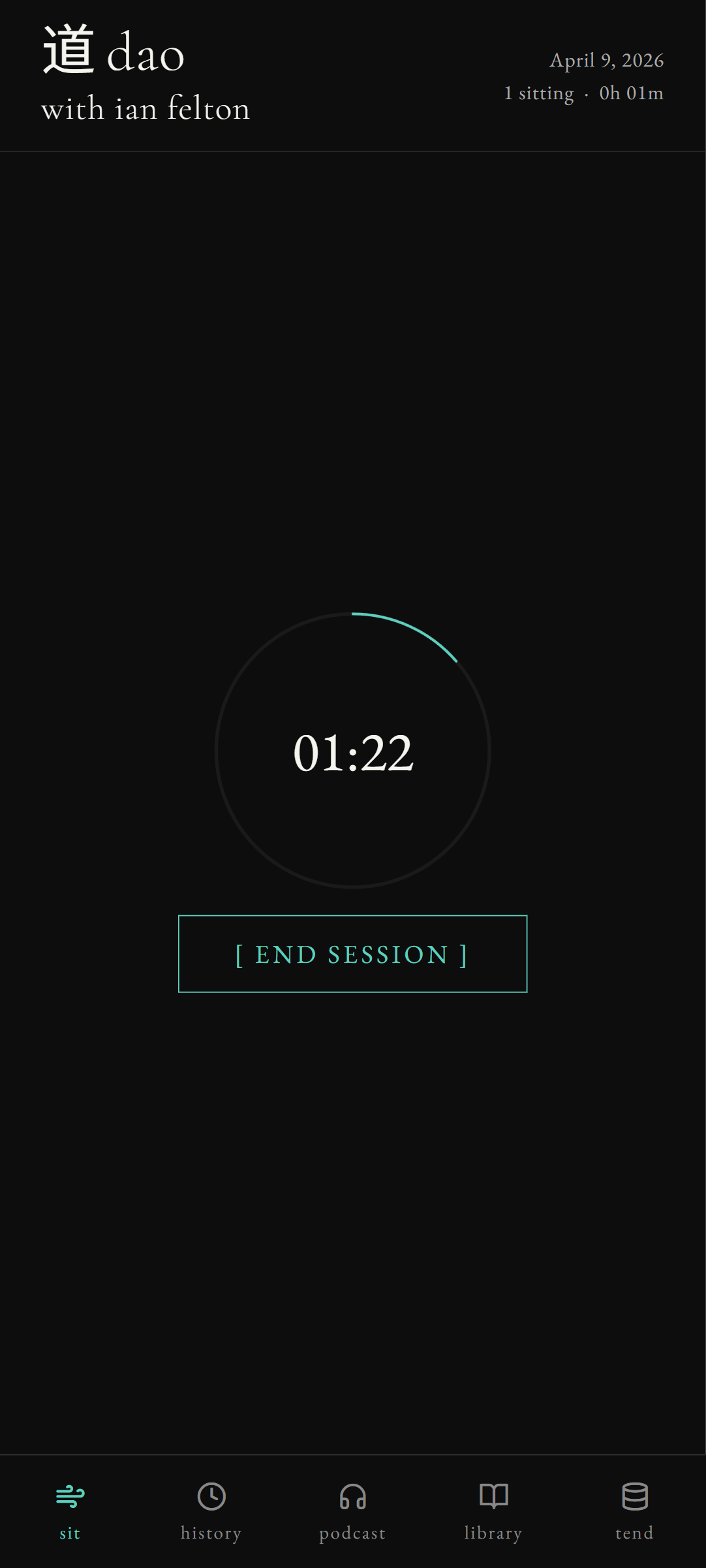
The sit tab is the home screen. There is no preset length and no scoreboard. You begin when you're ready, and you end when you're ready.
- Tap begin. The timer starts and a slow breathing ring expands and contracts at the pace of an easy breath.
- Sit. The timer keeps wall-clock time in the background — you don't need to look at it.
- When you're done, tap end session.
If you need to step away
Tap pause. The screen shows paused with resume and end session. The timer holds where you left it.
Guided practice instead
Before you begin, tap the practice picker to choose a guided practice — embryonic breathing, sitting in oblivion, inner observation, and others. Each comes with written instructions; some include audio. The timer adapts to the practice's length, or stays open-ended if the practice is open-ended.
The timer runs silently — there are no interval bells or chimes. That's intentional.
After a sitting — tags and a short reflection
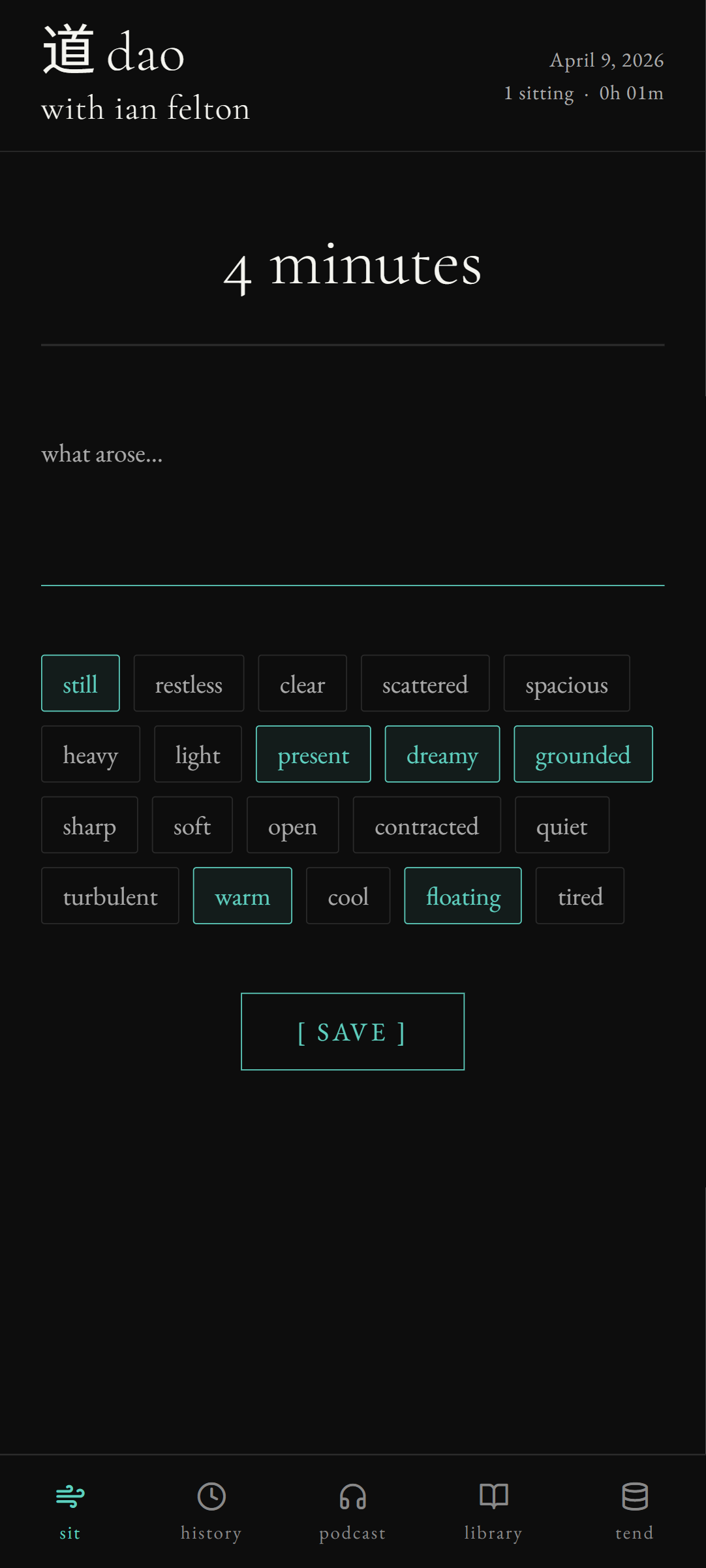
When a sitting ends, the reflection sheet appears. Both fields are optional — you can save and move on without writing anything.
Tags
Twenty pre-set tags describe what arose: still, restless, clear, scattered, spacious, heavy, light, present, dreamy, grounded, sharp, soft, open, contracted, quiet, turbulent, warm, cool, floating, tired. Tap to toggle. Pick as many as fit, or none.
Notes
A single open writing field — bottom border only, no box. A line or a paragraph; whatever you want to remember. The notes stay attached to that sitting.
Tap save. The sitting is logged with its date, duration, tags, and notes, and shows up in history.
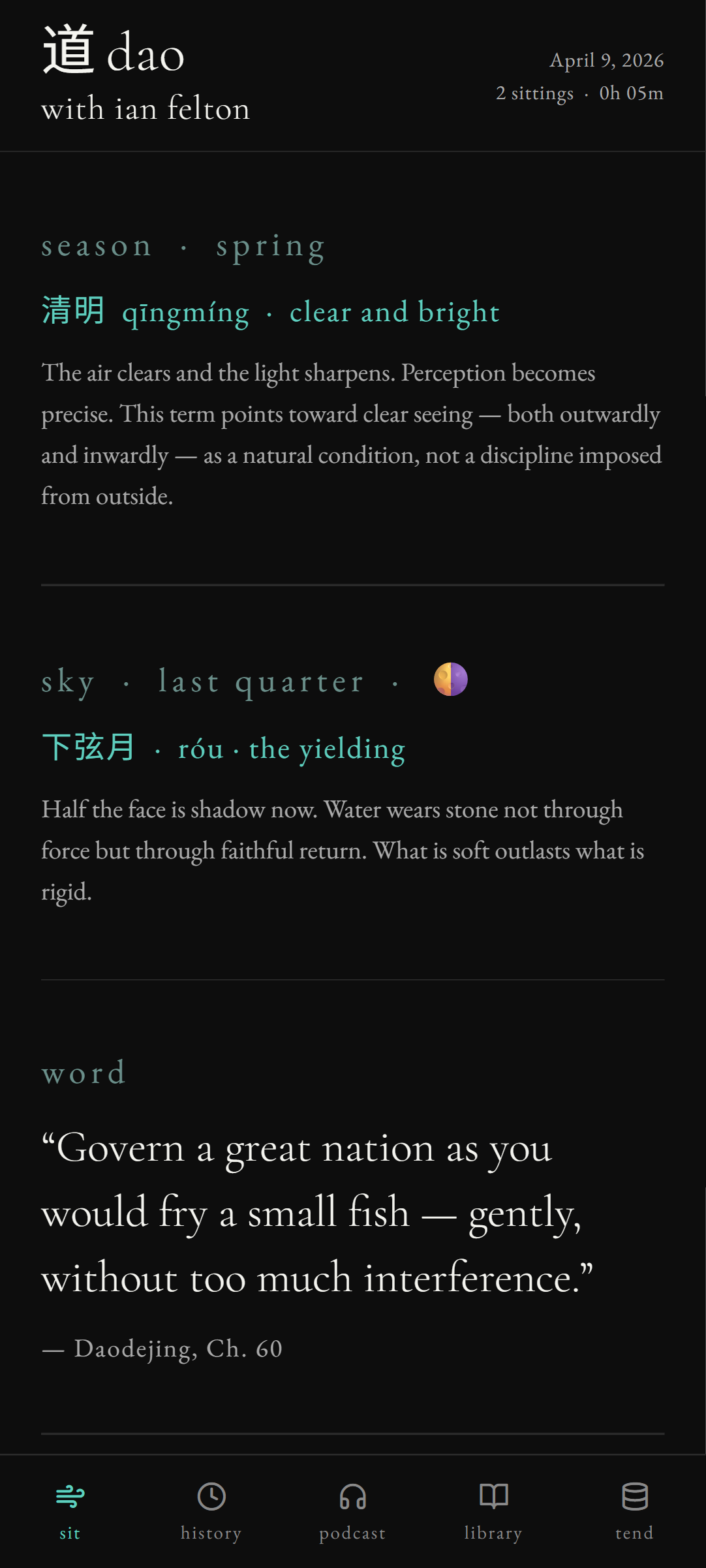
The daily orientation on the sit screen
Above the begin button, the home screen shows where you are in the cycles — meant to be glanced at, not studied.
- A fragment from the texts — a rotating passage from the Daodejing, Zhuangzi, Neiye, or related sources, to sit with.
- The current solar term — one of the 24 traditional Chinese seasonal markers (e.g. grain rain, start of summer) and how far along you are within it.
- Moon phase — calculated from the date.
- Organ period — which two-hour window of the traditional Chinese clock you're in, and the organ classically associated with it.
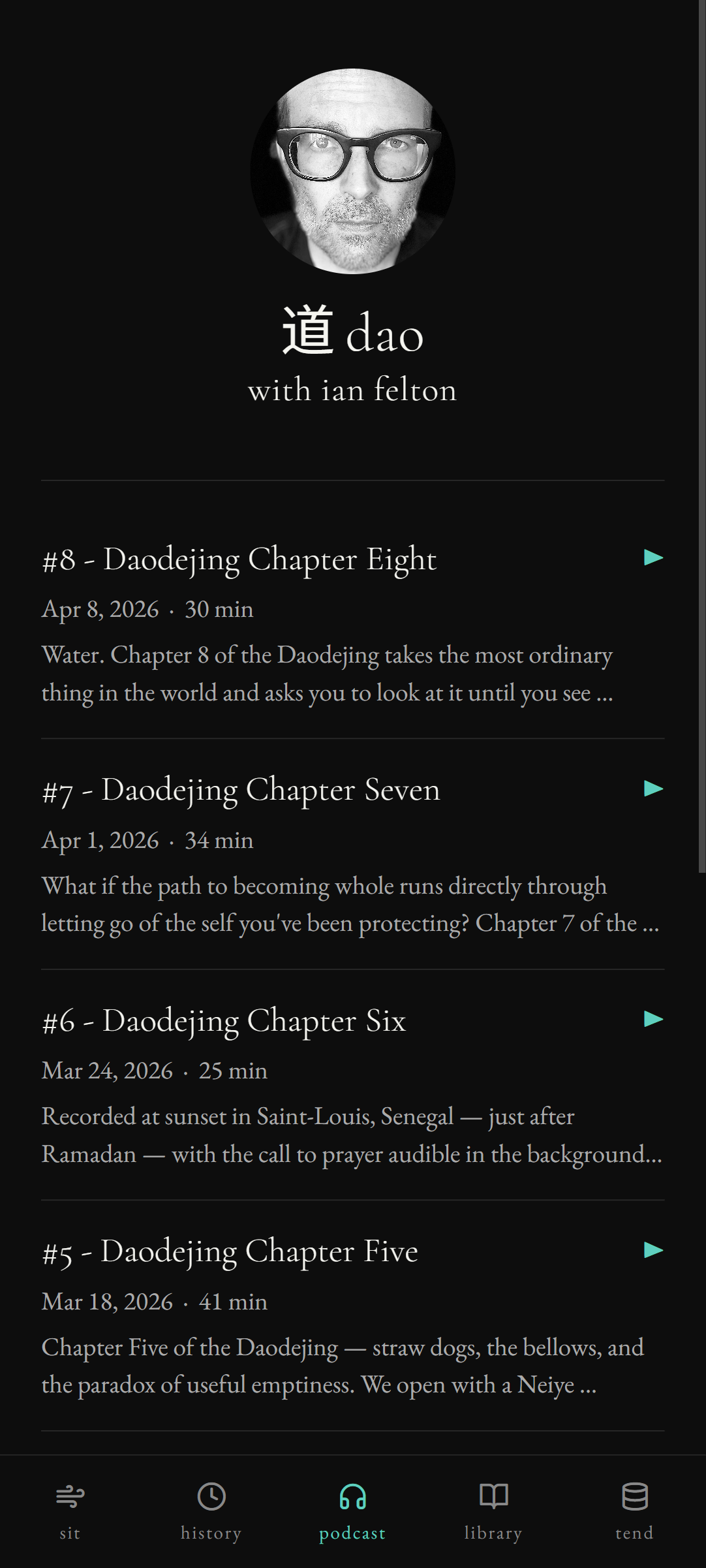
- The latest podcast episode — title and a one-line description, tappable to open in the podcast tab.
None of this is editable or interactive — it's the day's weather, quietly reported.
Keeping a practice journal
The journal is separate from sittings — for thoughts you want to record outside of a session.
- Open the history tab and switch to the journal view.
- The compose field at the top reads what is present…. Type an entry — a sentence, a paragraph, whatever the moment calls for.
- Optionally toggle tags from the same cloud you use after a sitting.
- Tap add entry.
Entries appear as cards, newest first. Each shows the date, the body (collapsed to three lines, tap to expand), and any tags. Tap the × to delete an entry — the app asks once to confirm.
Deletions sync. Removing an entry on one device removes it from the cloud and from your other devices on the next sync.
Reading the texts — Daodejing, Neiye, and the Field of Terms
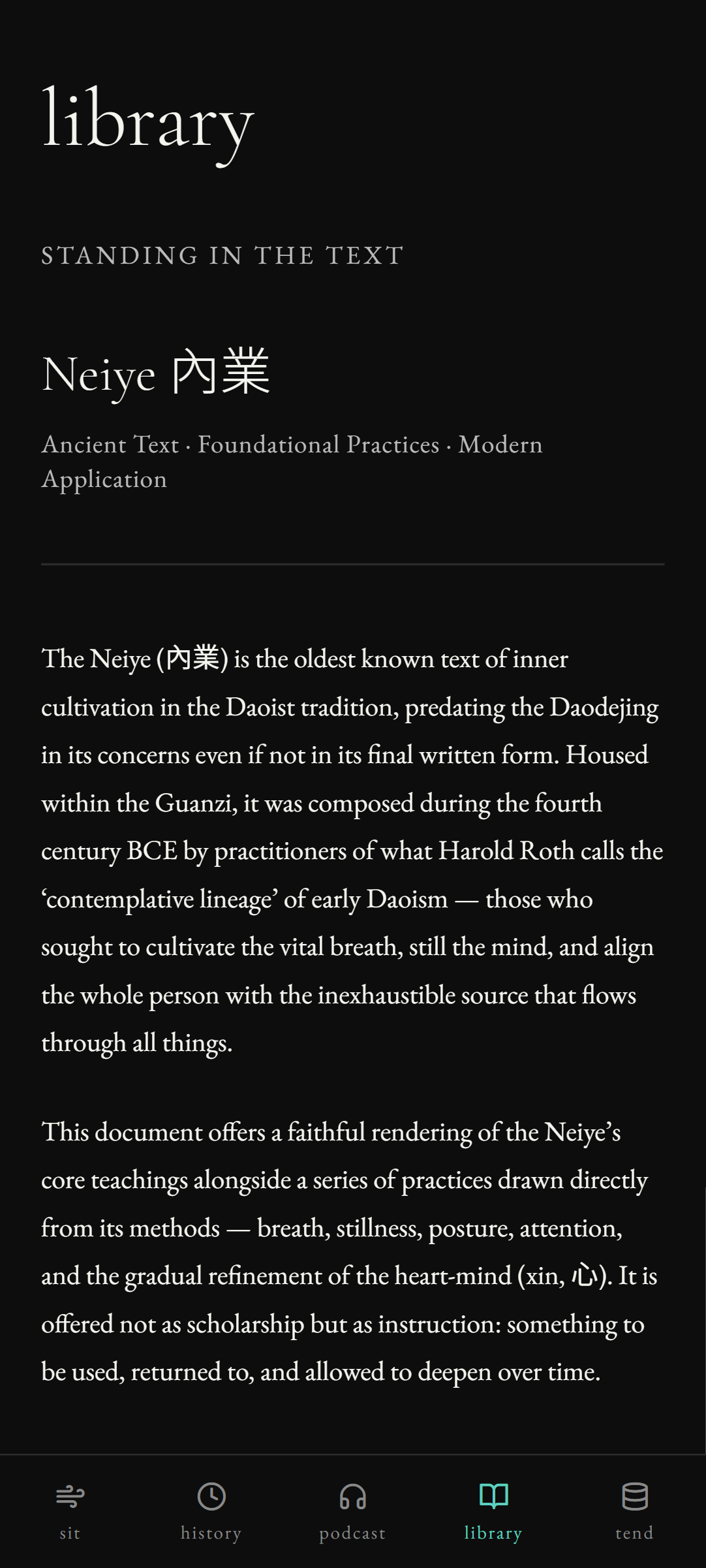
The library tab holds the foundational texts in Chinese alongside translation and notes. Today the live texts are:
- Daodejing 道德經 — Ian's working translation with practitioner commentary.
- Neiye 內業 — the foundational inner-cultivation text, presented as an article.
- Field of Terms 術語 — short working descriptions of classical Daoist vocabulary you'll meet in the texts and the podcast.
Tap a text to open the reader. Each chapter or section shows the Chinese, the English, and any commentary together — scroll to move through the text.
Annotations
Anywhere in the reader, you can add a personal annotation — a question, a passage that struck you, something to come back to. Annotations are private to you, kept locally, and synced to your account on the next sync.
Zhuangzi and additional Neiye sections are coming. The reader will pick them up automatically when they ship — no app update required.
Listening to the podcast inside the app
The podcast tab pulls every episode of Dao with Ian Felton from the public RSS feed. There's no separate account or subscription needed.
Playing an episode
- Tap the ▶ on any episode. The player expands beneath the episode row.
- The controls are ◀◀ back 15 seconds, ▶ / ❚❚ play/pause, ▶▶ forward 30 seconds, plus the time display.
- Tap anywhere on the progress bar to seek.
- Tap notes, when present, to read Ian's show notes for that episode.
Background and lock-screen playback
Audio keeps playing when you leave the app or lock your phone. On iOS, the lock screen and Control Center show play / pause / seek; on Android, the same controls appear in the notification shade.
If a fetch fails (no signal, RSS hiccup), the tab shows a short message rather than a blank list — pull to refresh once you're back online.
Insights — patterns over time
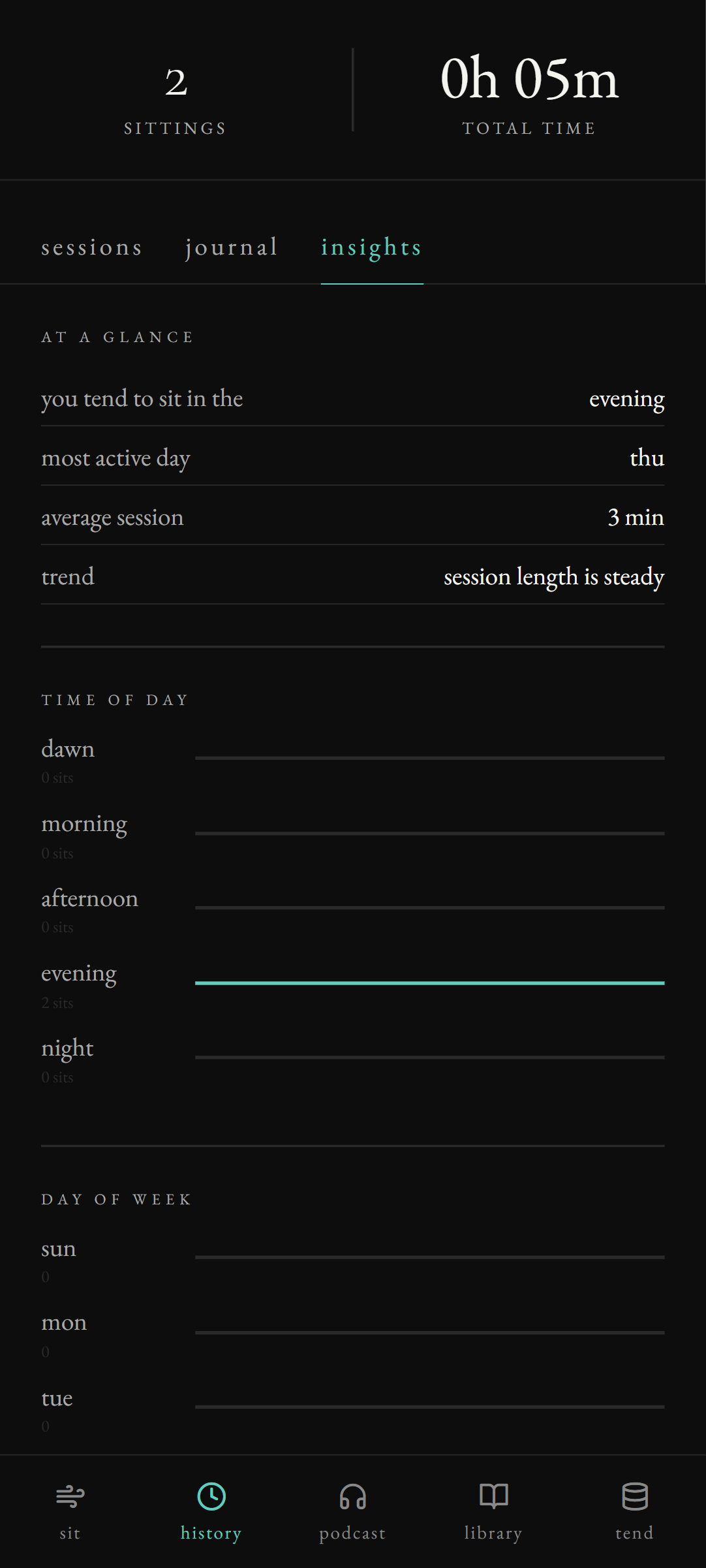
Open history and switch to insights once you've logged a handful of sittings. The view summarizes your practice without judgment:
- Total sittings and average duration.
- When you tend to sit — distribution across dawn, morning, afternoon, evening, and night.
- Which days of the week you sit most often, shown as horizontal bars.
- Trend — whether your last seven sittings have been longer, shorter, or steady compared with the previous seven.
There are no streaks to break and no goals to miss. The numbers are there if you want them.
Cloud sync, export, and a new device
Sign-in is required, and your sittings, journal entries, and annotations are synced privately to your account. Only you can read them.
Automatic sync
The app syncs in the background:
- When you sign in, and on every app launch.
- When you bring the app back to the foreground.
- A couple of seconds after any local write, so a sitting you just saved reaches the cloud quickly.
Manual sync
Open the tend tab → account and tap sync now. The last successful sync time is shown beneath the button. If something goes wrong, the error message appears there.
Export your data
tend → data → export data writes a JSON file containing every sitting, journal entry, and annotation, then opens the share sheet so you can save it to Files, send it to yourself, or hand it to another app.
Import from a backup
The same screen offers two import modes:
- Merge — adds rows from the file that you don't already have. Existing rows stay as-is.
- Replace — wipes local data and restores from the file. Use this if you're recovering from a corrupted state.
After import, the app syncs once so the cloud reflects the restored data.
Signing in on a new device
Install Dao, sign in with the same email, type the 8-digit code, and your sittings, journal, annotations, and synced library notes appear on the new device on the first sync.
Support
The companion app is published by Enterprise Code Corp (dba Ian Felton, MA, LPCC).